How to Make a Website in 2026: A Step-by-Step Guide for Beginners
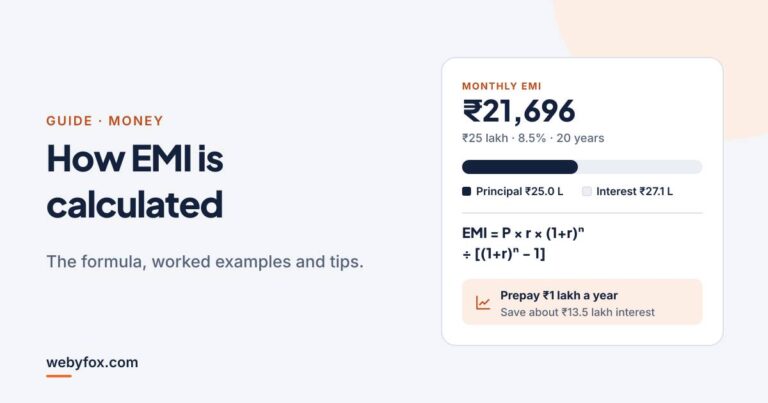
The EMI formula explained in plain English, with a worked ₹25 lakh example, tables for tenure and rate,…
5 min read

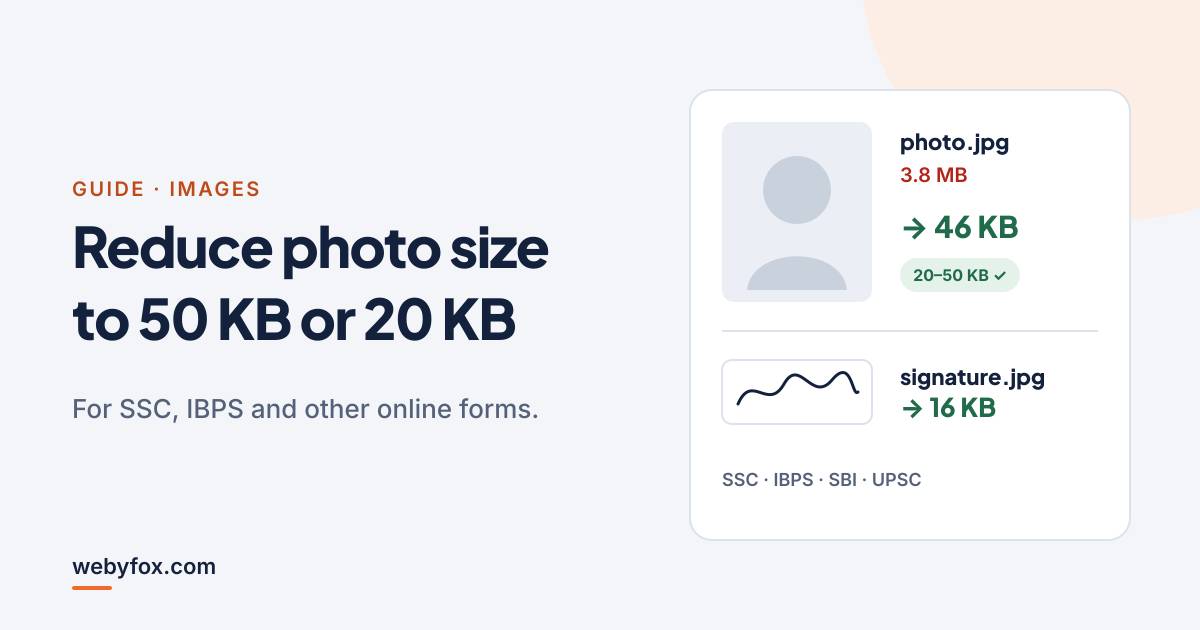
Get your photo and signature to the right size for SSC, IBPS and other online forms in four simple steps, for free and without uploading anything.
 webyfox
·
Updated November 16, 2026
·
5 min read
Key takeaways
You are filling in an online form, you choose your photo, and the website says “File size must be between 20 KB and 50 KB”. Phone photos are usually 2 to 5 MB, which is 40 to 100 times too big. This guide shows you how to get your photo and signature to the right size in a few minutes, for free, without installing anything.
Every exam publishes its own rules in the official notification, but most forms follow a similar pattern. These are the sizes commonly asked for in recent notifications:
| Form | Photo | Signature |
|---|---|---|
| SSC (CGL, CHSL, GD, MTS) | 20–50 KB, JPG | 10–20 KB, JPG |
| IBPS and SBI (PO, Clerk, RRB) | 20–50 KB, JPG, 200 × 230 px preferred | 10–20 KB, JPG, 140 × 60 px preferred |
| UPSC | Larger range, starting at 20 KB (check the notice) | Check the notice |
Check first: Rules change from year to year. Always check the “photo and signature” section of the official notification for your exam before you upload.
A good starting photo makes everything easier. Stand in front of a plain light wall, face the camera straight on, and use daylight from a window rather than a flash. Your face should fill most of the frame, roughly 70 to 80 percent, with no cap or dark glasses.
Tip: Use the photo straight from your camera. Do not take a screenshot of it, and do not send it to yourself on WhatsApp first: both lower the quality before you even start.
Open the photo in your phone’s gallery editor (or any photo app on a computer) and crop it to a portrait passport shape, a little taller than it is wide. Keep your head and the top of your shoulders in the picture.
If the form gives exact pixel sizes, such as 200 × 230 pixels, resize the photo to that size in the same editor. A small picture like this compresses easily to the KB target and stays sharp.
Now shrink the file size. Open the Compress Image to 50 KB tool, choose your photo, and it automatically finds the best quality that fits under 50 KB. Download the result. Your photo never leaves your device: the compression happens inside your browser.
.jpg or .jpeg.Tip: Some websites count a kilobyte as 1,000 bytes and others as 1,024 bytes. Aiming for 40 to 48 KB on a 50 KB limit keeps you safe either way.
Sign in black ink on plain white paper. Take a photo of it in good light, then crop tightly around the signature so there is very little empty white space. If the form gives a size such as 140 × 60 pixels, resize to that.
Then use Compress Image to 20 KB. A tightly cropped signature usually lands well inside the 10 to 20 KB range.
Crop the photo in your gallery editor, then open the Compress Image to 50 KB tool in your phone’s browser, choose the photo and download the result. It works on Android and iPhone without installing an app.
Check the minimum size (often 20 KB), the format (JPG only) and the pixel size if the form gives one. Also check that the background is plain and the photo is clear.
A little, but at the right pixel size the difference is hard to see. That is why you crop and resize first: a small, well-cropped photo needs less compression.
With Webyfox, yes. The tool runs in your browser and your photo is never uploaded to our server.
Got your photo ready? Keep a copy of the final file in a folder for your applications, so you do not have to redo it for the next form. To shrink other pictures, try the Image Compressor with your own KB target.


The EMI formula explained in plain English, with a worked ₹25 lakh example, tables for tenure and rate,…
The EMI formula explained in plain English, with a worked ₹25 lakh example, tables for tenure and rate,…